Your AI. Your next home.
Home research, offers, and closing with the AI you already use. Review and approve in chat. Step out only to sign. Connect your AI
From first listing to keys.
Your AI helps with the work. Ohvii keeps it together. You decide.
“What’s a fair price for this home?”
Compare nearby sales and property details with your AI, then decide what you’re comfortable offering.
“Can I get the listing agent’s details?”
Get the listing agent’s available contact details so you can ask questions and arrange a showing.
“What’s in the seller’s disclosures?”
Review the seller’s documents, spot missing details, and prepare questions to follow up on.
“Can we put an offer together?”
Choose your price, deposit, dates, and contingencies. Ohvii drafts the agreement for your review.
“How do I sign and send my offer?”
Review and sign in Ohvii. Return to your AI to check the message and attachments, then approve delivery.
“What changed in the seller’s counter?”
See changes to the price, dates, and protections before deciding how you want to respond.
“Can we ask for a repair credit?”
Use the inspection findings to prepare a repair or credit request for your review and approval.
“Can we ask for more time to close?”
Check your deadlines and prepare an extension request for the seller to review.
“What if the appraisal comes in low?”
Compare the appraisal with your price, contract, and financing before choosing a response.
“Who pays this new HOA charge?”
Read the assessment alongside your contract and prepare questions about who is responsible.
“Can the seller stay after closing?”
Talk through rent, dates, deposit, and possession before reviewing the written rent-back terms.
“What’s left before we get the keys?”
Review remaining tasks, the final walk-through, and possession details before closing out the purchase.
Make the connection.
Choose your app. Add Ohvii. Pick up the conversation.
Set up Codex.
Client instructionsAdd Ohvii to Codex
Run these commands in your terminal with the Codex CLI installed. The second command opens the Ohvii sign-in flow.
Terminal commandscodex mcp add ohvii --url https://ohvii.com/api/mcp codex mcp login ohviiSign in. Choose what to share.
Sign in to your Ohvii account when the browser opens. Review the app and choose the permissions you want to share.
Return to your AI.
Return to Codex after authorization finishes. Start a conversation with Ohvii available among your MCP tools.
Connected? Start with a home.
Paste a listing into your AI and ask what you want to know.
Use Ohvii to research this home: [listing link]. How does the asking price compare with nearby sales?
New to Ohvii? Create your account
Connected.
Still in control.
You set the access.
Choose which permissions your AI gets. Sending emails, confirming offer terms, and recording transaction milestones start off until you allow them.
Important decisions stay with you.
Review the terms, sign the actual documents, and approve delivery. Connecting an AI keeps these decisions separate.
The record stays in Ohvii.
Start a fresh chat or use another connected AI. Your saved property, documents, approvals, and deadlines stay together.
Start directly with Ohvii.
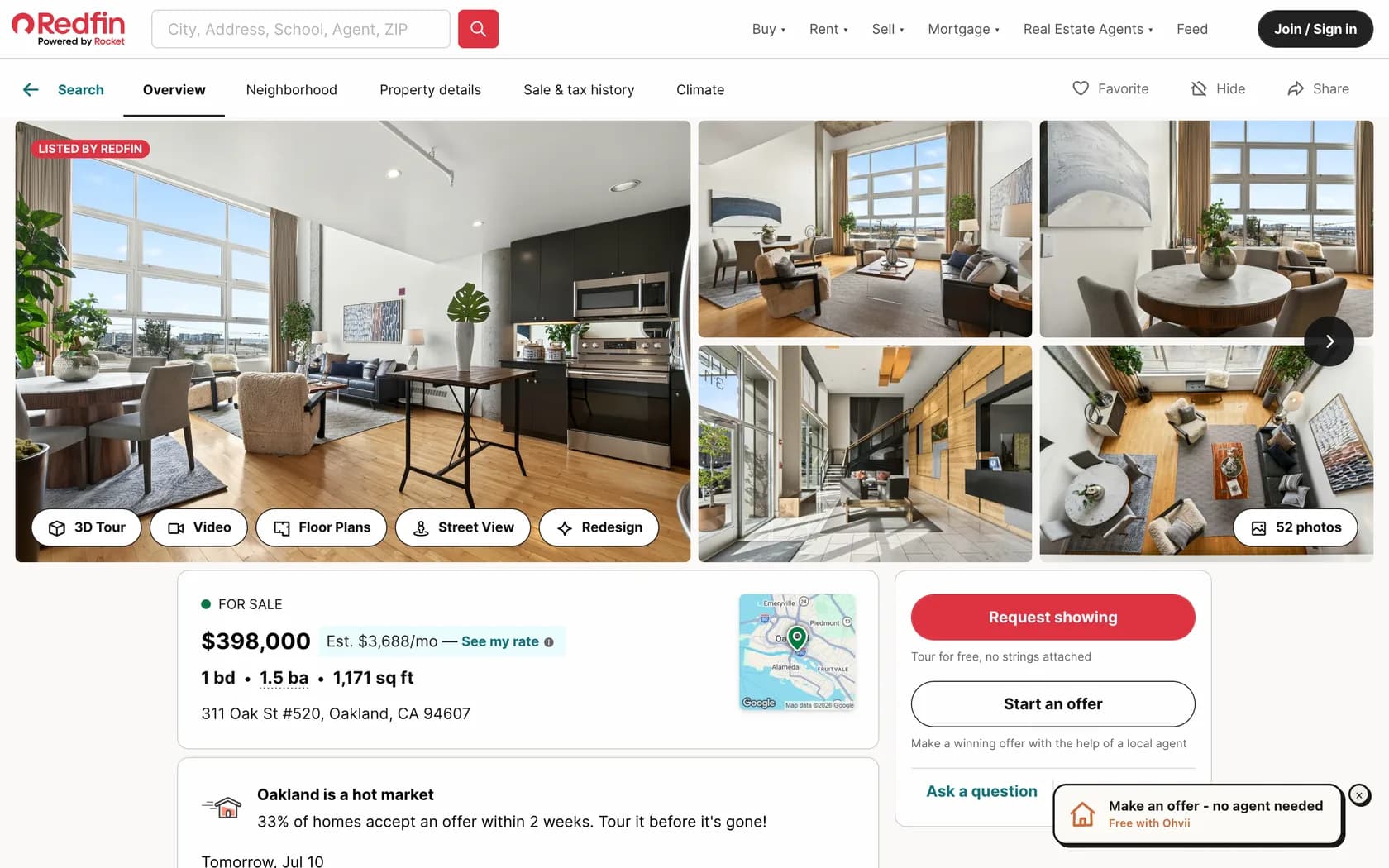
You don’t need your own AI assistant to get started. Add the Ohvii extension to Chrome, then open a supported California listing on Zillow, Redfin, or Realtor.com to start an offer in Ohvii.
Only the listing you choose is passed to Ohvii when you continue.
A few things to know.
Can I use a different AI?
Yes, if the app or agent supports remote MCP with OAuth sign-in. The model and the app are different choices: an agent running Gemini, Grok, or another model can connect when its host supports these tools. Choose Another AI for the connection details.
My AI doesn’t show Ohvii. What should I check?
Check that setup finished in your AI, the connection is enabled for your conversation, and your account supports custom tools. Use the client instructions above for current plan and workspace requirements. You can also get help from Ohvii.
Can I change permissions later?
Reconnect from your AI to choose a new set of permissions. Approving replaces that app’s existing connection. To stop its access, remove it from Connected agents.