Give your AI the tools.
Research a home, price the offer, draft the contract, and track every deadline. Review and approve in chat. Sign securely. Connect your AI
What to ask.
Prompts for every step, from first listing to keys. Change the details to match your home.
“Research this home and tell me how the asking price compares with nearby sales.”
Property details and verified nearby sales, with the price per square foot behind them.
“Who is the listing agent, and how do I reach them?”
Available contact details, so you can ask questions and arrange a showing.
“Read the seller’s disclosures and tell me what I should ask about.”
What the documents actually say, and the questions worth sending back.
“Offer $920,000 with 20% down. Keep my protections, and draft the agreement.”
A California Real Estate Purchase Agreement built from the terms you chose.
“I’ve signed. Show me exactly what will be sent.”
The recipient, the message, and every attachment, before you approve delivery.
“Read the counter, lay out every term they changed, then draft my response.”
Each changed term priced for you, and a Buyer Counter Offer ready to review.
“The inspection found dry rot on the deck. Ask for a credit.”
A Request for Repairs drafted from the findings, for you to approve.
“I need more time for the loan contingency. Ask for another week.”
An extension prepared against your real contract deadlines.
“The appraisal came in $30,000 under. What are my options?”
Your price, contract, and financing compared, with each response spelled out.
“The HOA sent a $4,800 assessment. Who pays it, us or the seller?”
The answer read out of your contract, quoting the term that settles it.
“The sellers want to stay two weeks after closing. What should I ask for?”
Rent, dates, deposit, and possession, before you see the written terms.
“What’s left before we get the keys?”
Remaining tasks, deadlines, the final walk-through, and possession.
Scroll to explore. Use the left and right arrow keys to browse, or Home and End to reach the first and last items.
Make the connection.
Choose your app. Add Ohvii. Pick up the conversation.
Set up ChatGPT.
Client instructionsAdd Ohvii to ChatGPT
On the web, enable Developer mode in Settings → Security and login. Open Plugins, use + to create an app, and enter the server address below with OAuth authentication.
Server addresshttps://ohvii.com/api/mcpRequires an eligible ChatGPT account. Workspaces may also require admin approval; setup options vary by plan.
Sign in. Choose what to share.
Connect the draft app and sign in to Ohvii when asked. Review the app and choose the permissions it can use.
Return to your AI.
In a new chat, open the + menu, choose Developer mode, and select your Ohvii app from Drafts.
Connected? Start with a home.
Paste a listing into your AI and ask what you want to know.
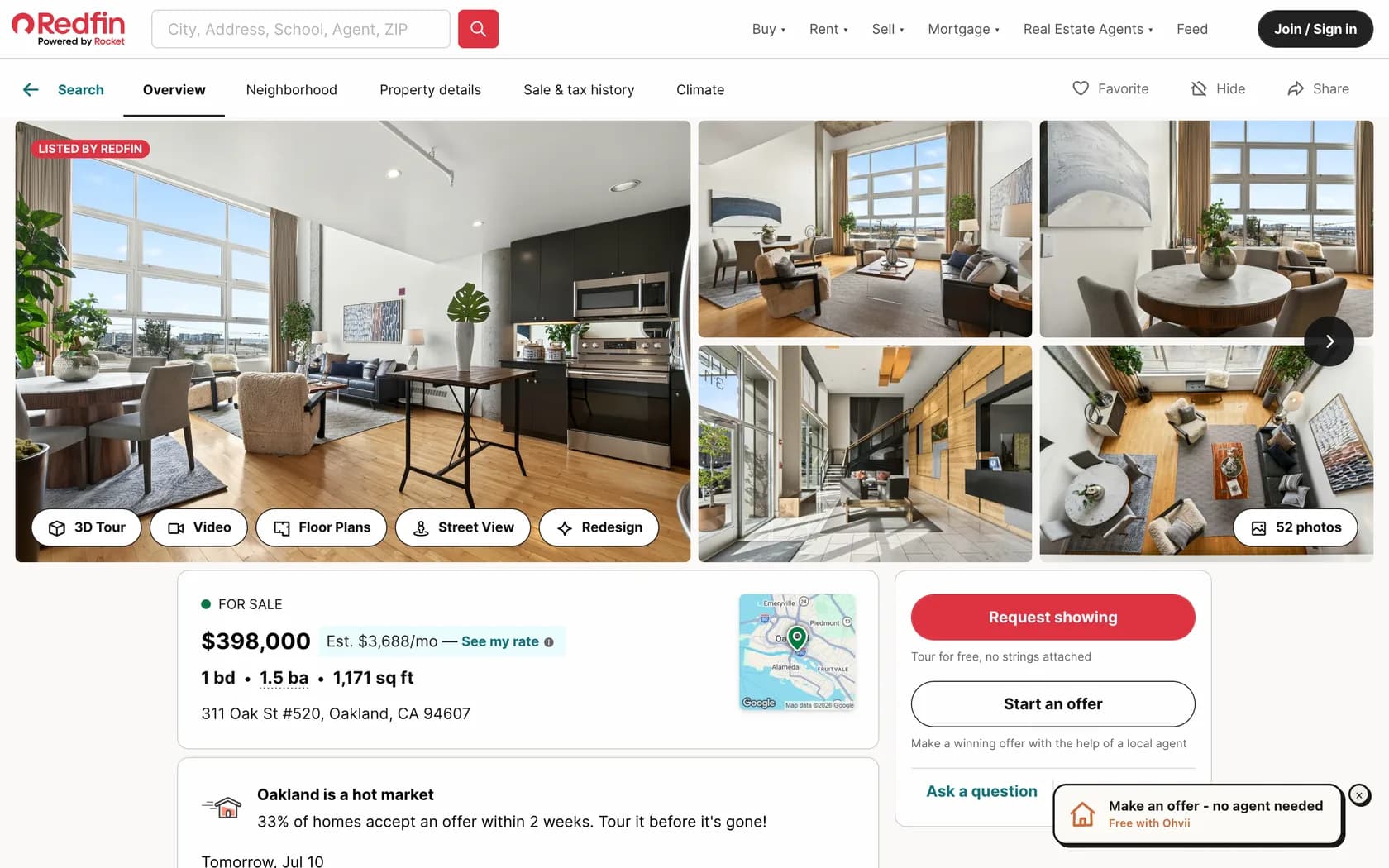
Use Ohvii to research this home: [listing link]. How does the asking price compare with nearby sales?
Ohvii not showing up? Check that setup finished in your AI, that the connection is enabled for your conversation, and that your account supports custom tools. The client instructions above have the current plan and workspace requirements, and Ohvii can help.
New to Ohvii? Create your account
Open ChatGPTBuilding an integration? Read the developer documentation for authentication, tool contracts and platform guidance.
Connected.
Still in control.
You set the access.
Choose which permissions your AI gets. Sending emails, confirming offer terms, and recording transaction milestones start off until you allow them. Reconnect any time to choose a new set; approving replaces that app’s existing connection.
Important decisions stay with you.
Review the terms, sign the actual documents, and approve delivery. Connecting an AI keeps these decisions separate.
The record stays in Ohvii.
Start a fresh chat or use another connected AI. Your saved property, documents, approvals, and deadlines stay together.
Start directly with Ohvii.
You don’t need your own AI assistant to get started. Add the Ohvii extension to Chrome, then open a supported California listing on Zillow, Redfin, or Realtor.com to start an offer in Ohvii.